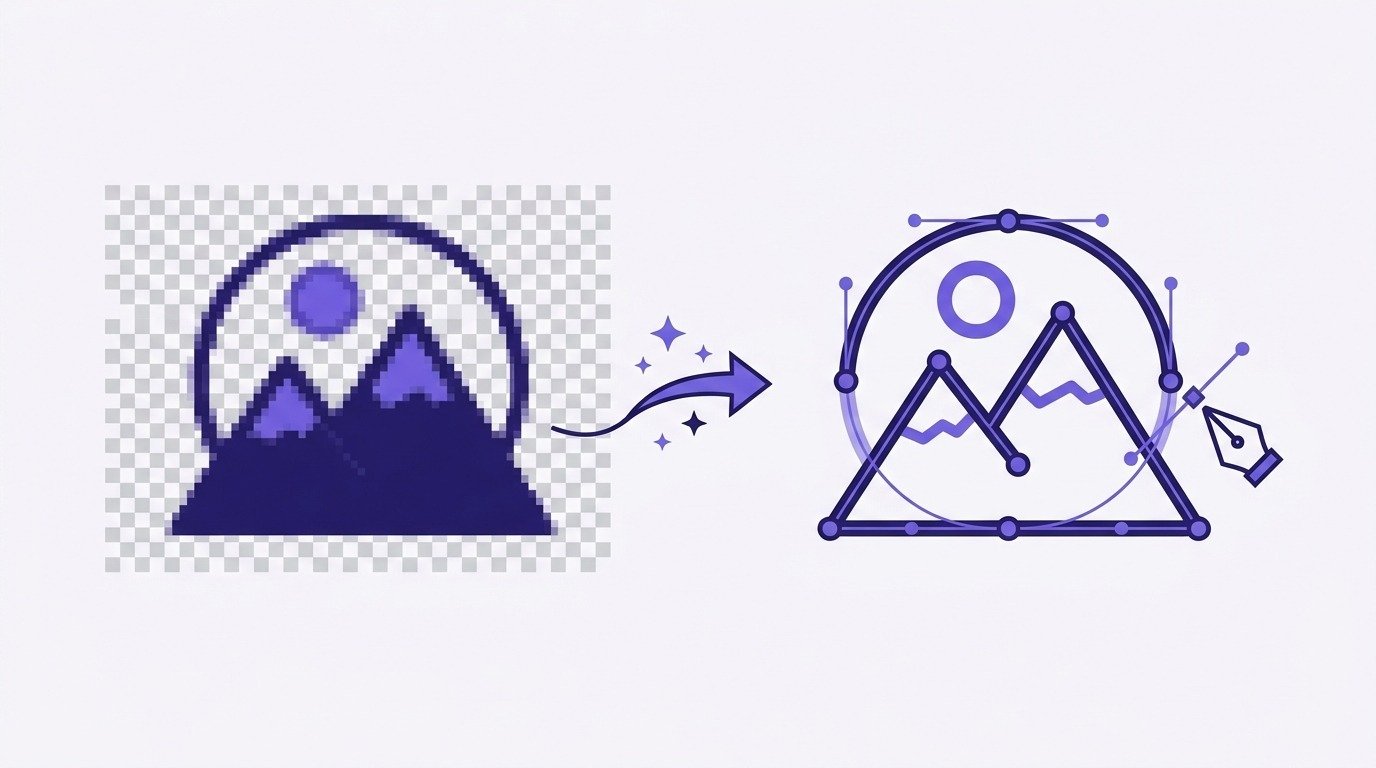
A PNG is a raster image made of pixels, while an SVG is a vector made of scalable paths.
To convert PNG to SVG, upload the PNG to a vectorizer, let it trace the image into vector paths, adjust the color and detail, and your SVG file is ready to download. It takes under a minute. A PNG is everywhere: logos, icons, graphics, and exports from every design tool. But the moment you need to scale it up, print it, or cut it on a machine, its pixels give it away: soft, jagged edges. Converting PNG to SVG turns it into a crisp, infinitely scalable vector you can use anywhere. Here's exactly how.
Convert PNG to SVG, no watermark
A PNG stores your image as a grid of pixels. It's great for the web at a fixed size, but enlarge it, and it blurs. An SVG (Scalable Vector Graphics) stores the image as mathematical paths, so it scales to any size, from a favicon to a billboard with perfectly sharp edges.
That's why designers, printers, and cutting machines want SVG.
In short: (1) upload your PNG, (2) let it trace to vector paths, (3) adjust colors and detail, and (4) download the SVG.
The tool traces your PNG into clean, scalable vector paths.
Fewer colors and more smoothing give a cleaner SVG; high-contrast art converts best.
Export it or grab EPS, PDF, or DXF if you need a different vector format.
Convert your PNG to SVG whenever a design has to scale or reach a machine:
A vectorizer traces what it sees, so prep pays off:
Photographs won't vectorize cleanly for a photo you just want sharper and larger, upscale it with AI instead.
Upload the PNG to a free browser-based converter, let it trace the image into vector paths, then download the SVG. No signup or software is needed and it takes under a minute.
Yes, the resulting SVG is a vector, so it scales without quality loss. The trace works best on flat, high-contrast art rather than photos.
Convert the PNG to SVG, then upload the SVG to Cricut Design Space. A true vector cuts cleanly, where a PNG usually won't.
For scaling, print, and cutting, yes, SVG stays sharp at any size. PNG is fine for fixed-size web images with transparency.
Yes. A browser-based converter works on iPhone and Android with nothing to install.
Use a vectorizer built for logos: upload the PNG, adjust the colors, and download the SVG.
Turning PNG into an SVG takes three moves: upload, vectorize, and download, and you get a crisp, scalable vector for the web, print, or cutting.
Convert to SVG instead