Before

After
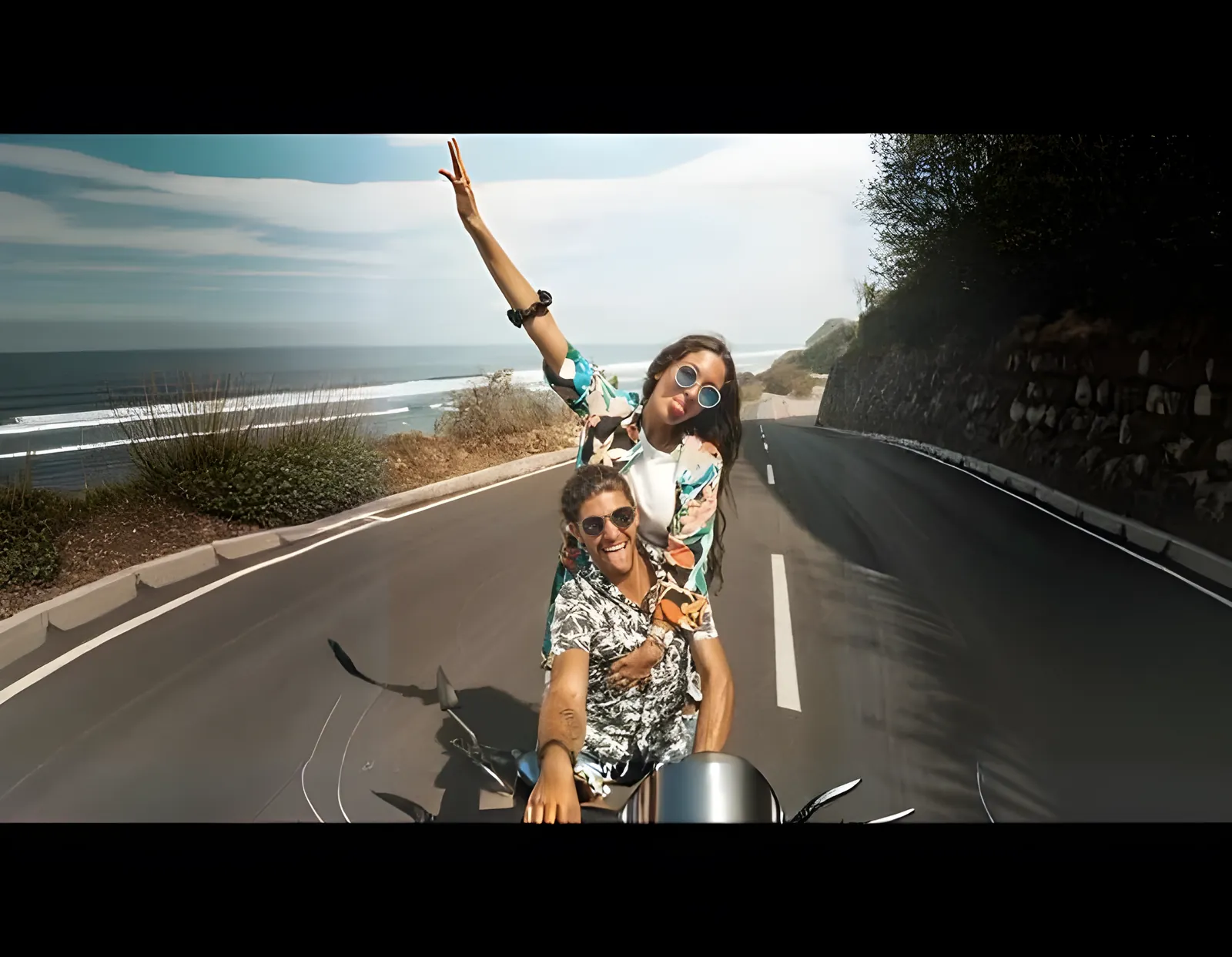
Resize any photo to a new aspect ratio without cropping, stretching, or losing quality using AI outpainting.
Every designer runs into this at some point: you've got an almost-perfect image good quality, right subject, fits the project's theme but it's the wrong shape for where it needs to go. Cropping ruins the composition. Stretching makes it blurry and distorted. Either way, it's frustrating, and it usually means starting the search for a different image from scratch.
AI image expanders have changed that. Instead of cropping a picture down to a size it was never meant to be, an AI image expander extends the original image outward generating new, matching content on the edges until it fills your desired size. Done well, you can't even tell where the original image ends and the generated part begins.
AI Vectorizer Tools builds this directly into a broader design workflow image expansion sits alongside an AI upscaler and a watermark remover, so designers who need all three regularly don't have to bounce between separate apps.
An AI image expander changes an image's size by extending its edges outward while keeping the original image's quality and content completely intact. That's the opposite of shrinking an image, where you compress existing content into a smaller space. Expanding means generating content that was never in the frame to begin with.
Picture a photo you took a year ago. Upload it to an AI image expander, and the model analyzes the existing image and adds new, accurate content around it without disturbing anything that was already there.
This same idea goes by a few different names outpainting, generative fill, photo enlarging but they all describe the same process: building a new outer layer around an image that continues seamlessly from where the original stops.
Fixing an aspect ratio is the headline feature, and it's the reason most designers reach for an image expander in the first place.
Designers juggling multiple projects at once often need the same piece of content resized for several platforms at the same time. An Instagram post might call for a 4:5 ratio, a Facebook post 1.91:1, and a Story 9:16. Reshooting or redesigning separately for each size eats up time that most workflows don't have to spare. An AI image expander turns that into a single starting image, resized as many ways as the project needs without any loss in quality.
AI Vectorizer Tools is built to handle the problems designers run into most often upscaling, image expansion, and watermark removal with results back in minutes. Here's the process:
Step 1: Upload the image you want to expand. Drag your starting image into the tool, or select it from your files. Once it's uploaded, choose which direction (or directions) you want to extend left, right, up, or down. The tool analyzes the existing image and generates new content around those edges without touching the original content itself.
Step 2: Fill the frame, with or without a prompt. Once your expansion amounts are set, start the process. The tool fills the new space around your image based on what's already there matching lighting, color, and style. There's also an optional prompt field if you want more control over the result. Say you uploaded a photo of yourself in a car you could add a prompt like "sunrise light on car," and the AI generates the expanded area to match that description precisely.
Step 3: Experiment and refine. If the first result isn't quite right, try a different prompt or adjust the amounts and run it again. You can repeat this as many times as you need within the same project until the expanded image is exactly what your work calls for.
Tools like this are changing what's actually possible in a design workflow, not just making existing tasks faster. A few years ago, needing an image in a format you didn't already have meant hours of manual rework, or settling for a stretched, distorted version of what you had. Now it's a few minutes' work.
AI Vectorizer Tools folds image expansion into the same toolkit as upscaling and watermark removal, so it fits into an existing workflow rather than demanding a separate platform every time a format doesn't match. If you're still cropping images into shapes they were never meant to be, it's worth trying a different approach.