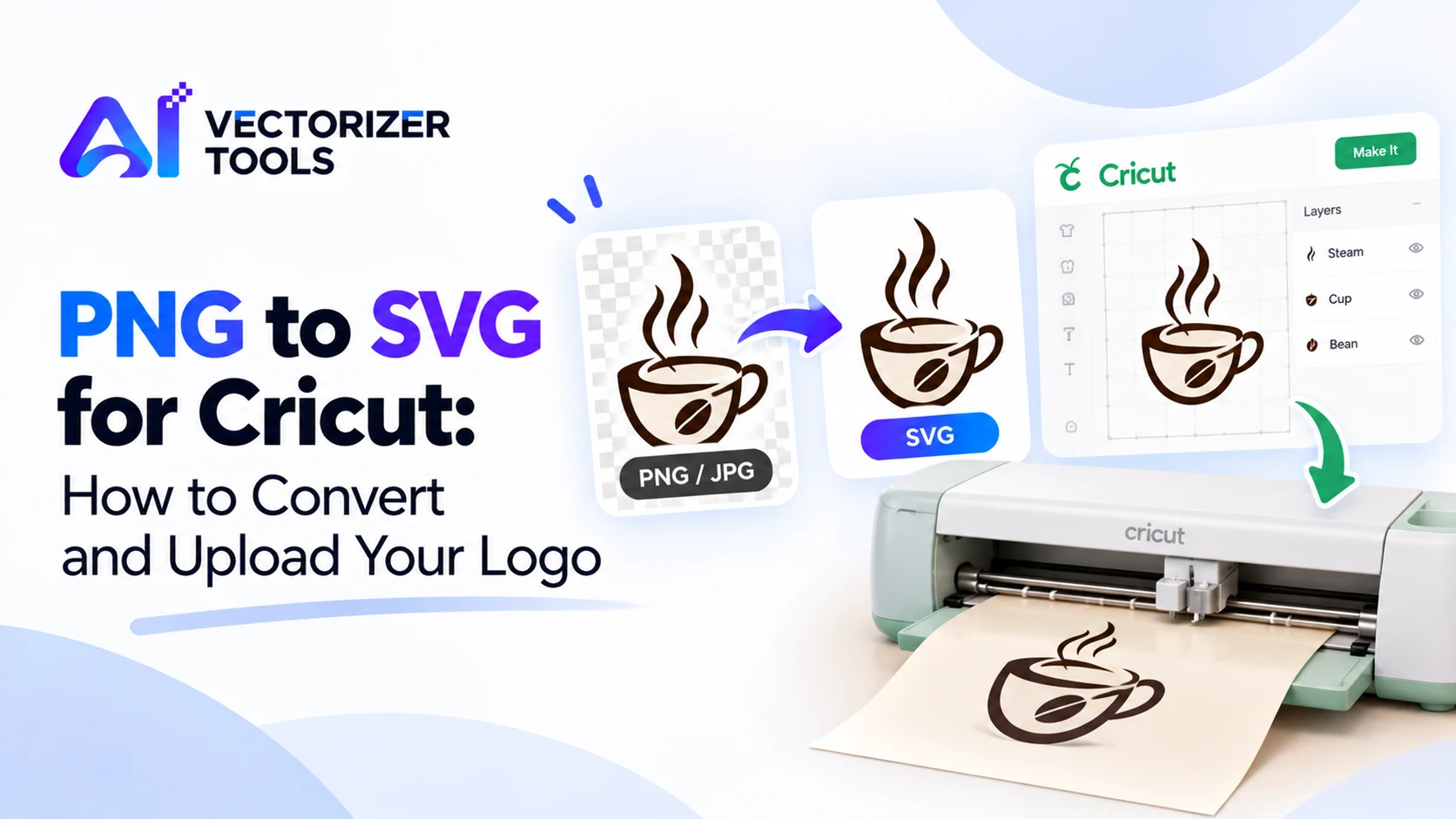
You have a logo or a design in PNG or JPG format and want to cut it out using your Cricut machine. While it is possible to import a raster (bitmap) file directly, using an SVG file generally results in a cleaner cut. Here is why, along with the steps to create one.
Cricut Design Space distinguishes between two categories of files. Raster images (PNG, JPG, GIF, BMP) are imported as a single layer and require a cleaning step. In contrast, vector files (SVG and DXF) do not require this step, as they already contain defined cut paths. The SVG format is the most common type of cutting file. If Design Space struggles to convert an image into clean cut layers, it is often because the original JPG or PNG file lacks precision (appearing grainy).
Photos and soft gradients don't cut well. See which images vectorize well.
Open the SVG Converter, upload your PNG, JPG or WebP, and download the SVG. It runs in your browser.
An error such as "Incompatible SVG; convert files to paths" has been reported in the Joy mobile app. Re-export your file ensuring the text is converted to paths and try using the desktop version of Design Space.
Multi-colored designs require special attention: cut each color separately using the appropriate material, and verify the color arrangement in the "Layers" panel. This tool yields the best results with monochrome designs or those composed of solid blocks of color.
Imagine you run a small café and want to create a vinyl cutout of your logo depicting a cup and some steam for your storefront window. You have a 600 × 600-pixel PNG file, taken from your website. Here is how the process unfolds in practice:
This final step is perfectly normal. Recreating the file is inexpensive, and spotting an issue on-screen is far less costly than discovering it only after the design has already been cut from a roll of vinyl.
A Cricut machine cuts only one material at a time. A single-color logo is straightforward: one layer, one material, one cut. A multi-color logo requires a separate cut for each color—with each element coming from its own sheet of material—followed by careful layering. Before converting a multi-color design, consider whether such complexity is truly necessary. Many logos work very well as a single-color silhouette; they are faster to cut, easier to weed, and simpler to apply.
If you still wish to use multiple colors, check the "Layers" panel after uploading your file. Each color must be on a separate layer so that you can assign a specific material to it. If the colors appear merged, simplify the design or separate the different colors in your image beforehand.
When you upload, Design Space asks whether the image is a Cut Image or a Print Then Cut Image. The difference matters: if you want printed stickers with full-color artwork, a raster file is the natural choice. If you want shapes cut from solid material, a traced SVG is the better fit.
| Cut Image | Print Then Cut | |
|---|---|---|
| What it does | Cuts the shapes from material | Prints the image first, then cuts around it |
| Best for | Vinyl, paper, iron-on, cardstock | Stickers and printed labels |
| File type fit | SVG with clean paths | PNG or JPG with full color |
Yes, Design Space accepts PNG, JPG, GIF and BMP, but they upload as a single layer and may need cleanup. An SVG is usually cleaner.
The source image was probably low resolution, which creates uneven edges and many unnecessary points when traced. Start from a larger, cleaner image.
Design Space lets you upload your own SVG files; subscription requirements can change, so check Cricut's current terms.