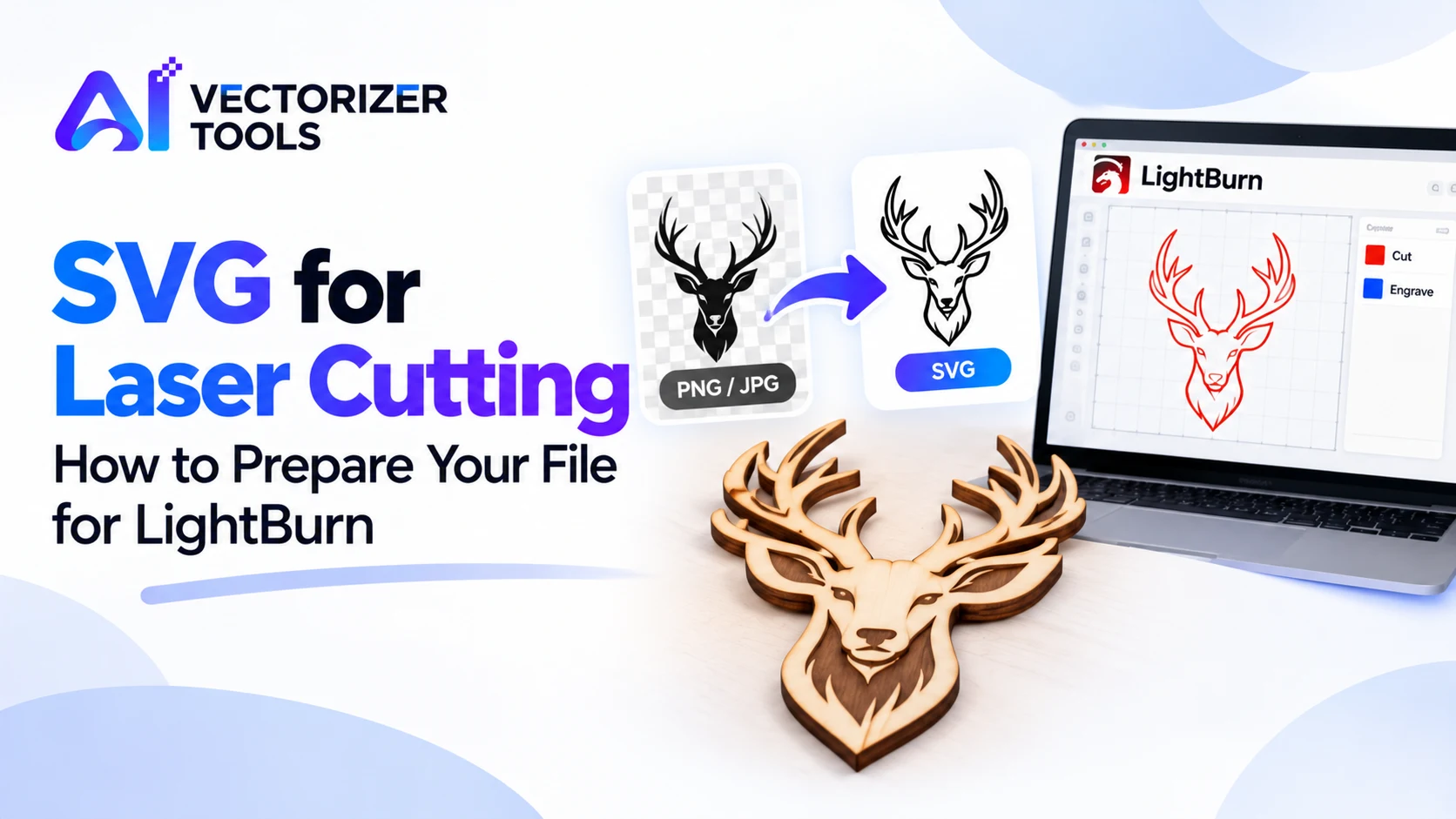
A laser cutter follows vector paths. If you only have a PNG or JPG file, you can vectorize it to create an SVG file, which can then be imported into the laser control software. LightBurn supports a wide range of formats, including SVG, AI, PDF, and DXF, as well as image formats like PNG and JPG.
This often surprises beginners: an SVG file contains only geometric data. It does not specify which lines should be used for cutting, marking, or engraving. You define these operations within the laser software by assigning shapes to different layers, each with its own specific speed and power settings. If your SVG file uses distinct colors for each type of operation, LightBurn can automatically distribute them into separate layers upon import.
Silhouettes, logos, and line drawings work best. Photographs generally do not yield usable cutting paths.
Import the file into LightBurn via the File > Import menu.
Use the Edit > Select Open Paths function, then close these paths by setting a tolerance. This step is crucial, as only closed paths can be filled for engraving; furthermore, open paths can lead to gaps or discontinuities during cutting.
Place the outlines intended for cutting on one layer and the lines intended for marking on another, then set the power and speed for each.
Define the perimeter (framing area) and run a test. Perform a trial run on a scrap piece of material before cutting the final workpiece.
| Operation | What it does | Needs closed shape? |
|---|---|---|
| Line | Follows the path (cuts or scores, depending on power) | No |
| Fill | Engraves the inside of a shape | Yes |
| Image | Engraves a raster image | n/a |
Your laser's manufacturer settings come first. Always check recommended speed and power for your material and machine.
Before you convert anything, decide what you want the laser to do. There are two very different jobs, and they need different files.
A photo to be engraved doesn't need an SVG at all, because the software can engrave the pixels directly. Tracing is for the jobs where you need the machine to follow a path.
| Job | File you want | Good source |
|---|---|---|
| Cut out a shape | Vector outline (SVG) | Silhouette, logo outline, simple icon |
| Score a line | Vector line (SVG), low power | Line art, fold lines, detail lines |
| Engrave a filled shape | Closed vector shape, Fill mode | Solid logo, lettering |
| Engrave a photo | Raster image, Image mode | Photograph (no tracing needed) |
Imagine you want to create a name tag cut from thin plywood, featuring an engraved logo. To do this, you need to prepare two elements. First, a simple outline corresponding to the shape of the tag—this is easy to draw in any design software and requires no complex vectorization. Second, the logo, which you convert into an SVG using an SVG Converter.
In LightBurn, you import both elements. The outline of the tag is placed on a cutting layer, with power and speed settings configured to cut all the way through the material. The logo, meanwhile, is placed on an engraving layer set to "Fill" mode, with settings that mark the surface without piercing it. It is advisable to perform a test run on a scrap piece of material first, as every combination of machine, material, and settings is unique.
A vectorized logo may contain tiny gaps where the paths do not meet perfectly. A cut line with such a gap will leave a small bridge of material, keeping the piece attached to the rest of the stock. As for areas intended to be filled, if there is a gap, the software will be unable to apply a fill, as it cannot determine what constitutes the "inside." This is why checking for open shapes is a standard step. If you encounter a large number of them, it is usually due to a low-resolution source image or one containing digital "noise," rather than a malfunction of the tool itself. Try again using a sharper, clearer image.
Lasers pose risks of fire and the emission of smoke. Ensure adequate ventilation, never leave a machine running unattended, keep a suitable fire extinguisher nearby, and do not cut materials that the manufacturer advises against. Follow the instructions provided with your machine, as they vary depending on the type of laser.
If your design is also headed to a craft cutter, see PNG to SVG for Cricut.
You can engrave a PNG as an image, but to cut an outline you need a vector path, such as an SVG.
Fill only works on closed shapes. Select open shapes and close them with tolerance, or re-trace from a cleaner image.
No. SVG contains geometry only. You set cut, score and engrave settings per layer in the laser software.