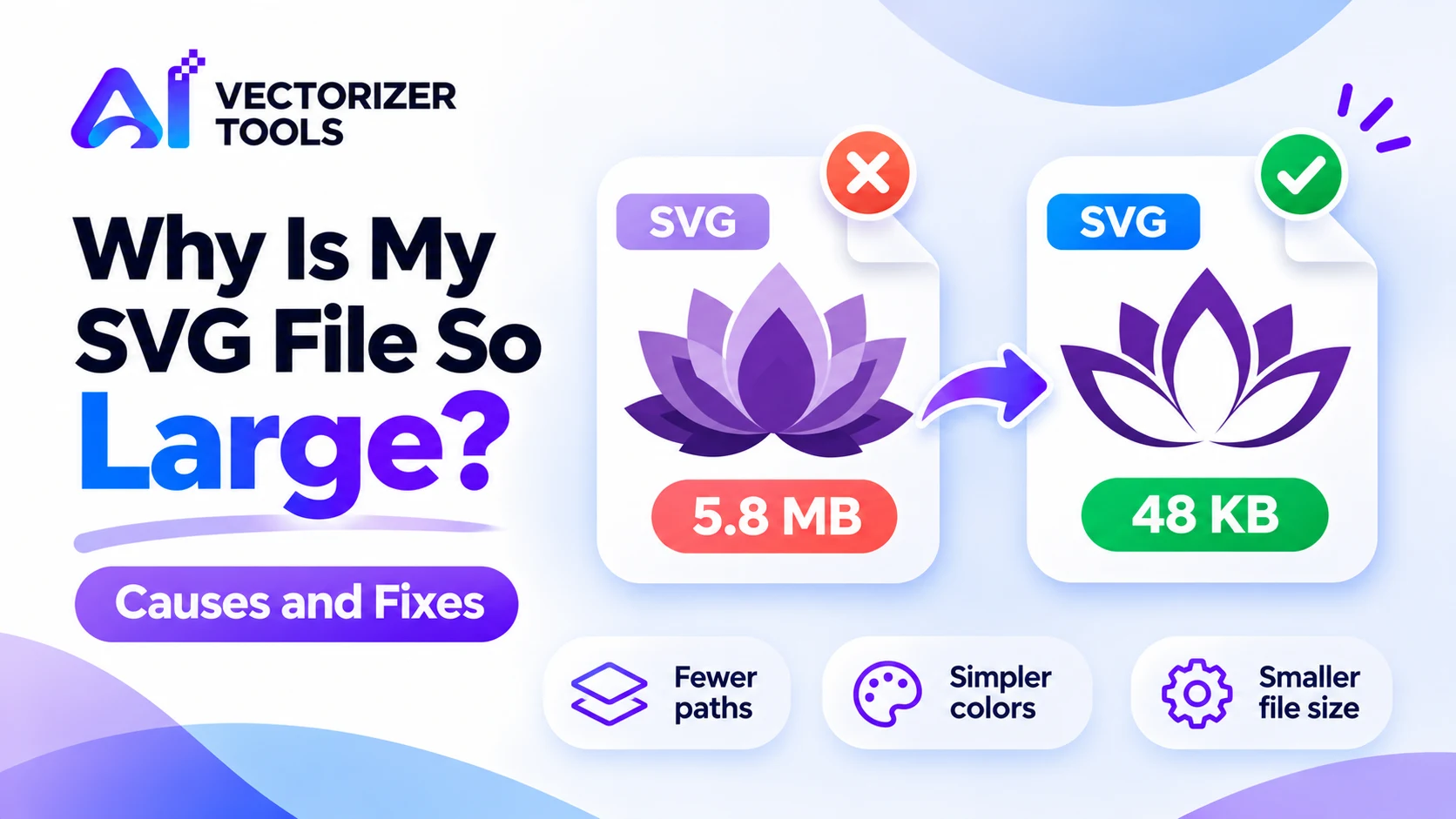
SVGs are supposed to be small. When one weighs several megabytes, something is off. The cause is almost always one of four things, and each has a fix.
Cause 1: Too many points and paths. In an SVG file, each curve is stored as a set of coordinates. A detailed image, such as a photograph or a textured drawing, can translate into tens of thousands of tiny shapes. The greater the number of shapes, the larger the file and the slower it is to process. Complex raster images are the typical cause of very large files generated through automatic vectorization. Solution: simplify the source image. Remove gradients, textures, and superfluous background elements before performing the conversion. See which images vectorize well.
Cause 2: Too many colors. Each color band becomes its own set of shapes. A smooth gradient can become hundreds of layered bands. Fix: Flatten gradients to a few solid colors first.
Cause 3: A bitmap hiding inside the SVG. Some "SVG" files are just a PNG or JPG embedded in an SVG wrapper. They're large and not truly vector. If your file zooms into blurry pixels, this is the reason. Fix: Trace the image properly into paths with the SVG Converter.
Cause 4: Extra data. Editors can add metadata, hidden layers and unused definitions. These are usually small compared with the paths, but they add up. Fix: Use "optimize" or minified export in your editor, or run an SVG optimizer.
Servers can effectively compress text in SVG format; a file that appears large can therefore be transferred in a much lighter form. In any case, a lighter file loads and displays more quickly. Excessively heavy files also slow down cutting software. If you plan to perform any cutting, check jagged edges too, since extra points often cause both problems. See fixing jagged SVG edges.
An SVG is a text file, so you can open it in a plain text editor and see what's taking up space. Three things tell you a lot quickly:
Knowing which one you have saves you from trying fixes that won't help.
These are rough guides, not rules. What matters is whether the size matches the complexity of what you see.
| Artwork | Typical SVG size | If it's much bigger |
|---|---|---|
| Simple icon | A few KB | Likely too many points or embedded data |
| Logo with a few colors | Tens of KB | Check for gradients or noise |
| Detailed illustration | Hundreds of KB | Consider simplifying |
| Traced photo | Megabytes | Expected; vectorizing was the wrong choice |
The most effective fix happens before you trace. An SVG can only be as simple as the picture it came from.
Most vector editing software allows you to create a smaller file by selecting options such as removing metadata, converting styles into attributes, or minifying the code. There are also tools specifically designed for optimizing SVG files that perform similar tasks—for instance, by reducing the number of points without affecting the visual appearance. After any optimization process, reopen the file and zoom in to ensure that no important elements have been lost.
It depends on the use:
If your image is a photograph or has rich gradients, a PNG or JPG will almost always be smaller and look better than a traced SVG. Vector formats are best for shapes. If you need a larger photo, use the Image Upscaler instead of tracing.
Simple logos and icons are often a few kilobytes to a few hundred. Anything in the megabytes suggests too much detail or an embedded image.
Yes. Remove unneeded points, metadata and hidden elements with an optimizer. For heavy traced files, simplify the source and convert again.
Photos contain far more detail than clean shapes can describe, so the trace creates enormous numbers of tiny paths.