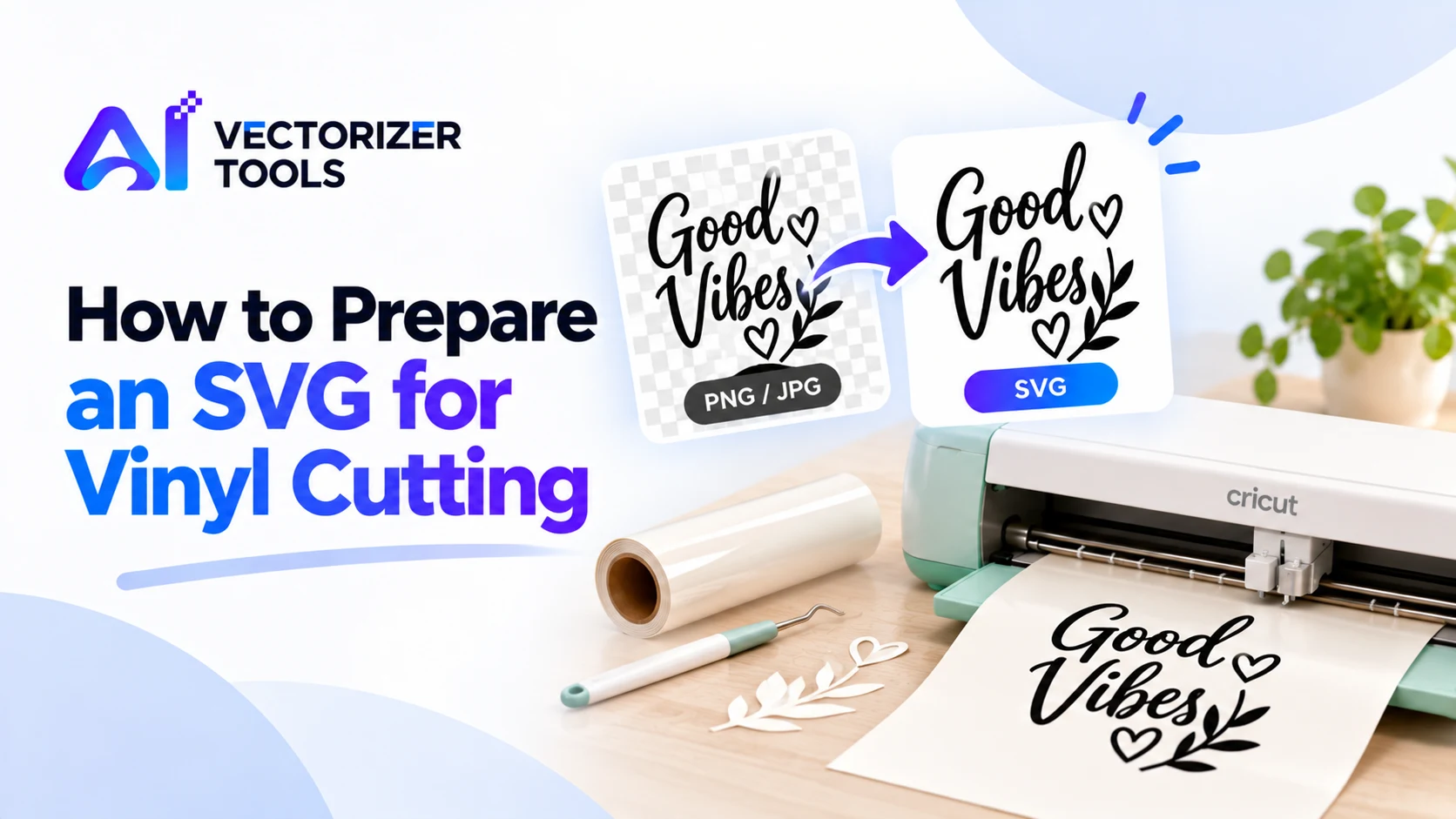
A cutting plotter follows specific paths. If the lines are crisp and the shapes are clearly defined, both the cutting process and the weeding—removing the excess material—become much easier. If, on the other hand, the design contains extremely fine lines or isolated dots, you could end up spending an hour just on the weeding. Most of the work actually takes place before the cutting begins, during the file preparation stage.
Weeding consists of removing the parts of the vinyl that you do not need. Designs are easier to weed when they feature:
Black artwork on white is ideal. Clean up a busy background with the Background Remover.
Specks and stray dots are common in traced images. Delete them or re-convert from a cleaner source.
Scale the SVG to its final size and check that the smallest details are still cuttable at that size.
With iron-on, you cut from the back of the material, so the design must be mirrored before cutting. Most cutter software has a mirror option on the final screen. Forgetting it reverses your text.
| Adhesive vinyl | Iron-on (HTV) | |
|---|---|---|
| Use | Decals, labels, signs | T-shirts, bags, fabric |
| Mirror the design? | No | Yes, cut it mirrored |
| Detail tolerance | Moderate | Often needs bolder detail |
The best vinyl designs are almost always simpler than the original artwork. Look at your design and ask what will go wrong when you weed it.
It's easier to fix these in the original image than in the SVG, so spend a few minutes there. A tool like the Image Recolor can help turn off-white or grey areas into a clean solid color before you convert.
Imagine the name of a small business written in a handwritten-style font, accompanied by a simple leaf icon. At the desired size, the fine strokes of this font measure 1 mm in thickness. You decide to enlarge the lettering by about 15% to thicken these strokes, and you opt for a bolder handwritten font. You process the image, check the leaf for any imperfections—removing two unwanted specks—and then resize the file to its final dimensions. At this stage, it is a good idea to print a full-size hard copy; you can then hold it up against a window to better evaluate its proportions.
For designs that incorporate multiple colors, the elements are cut from separate sheets and then layered. Plan your layers so that each color forms a distinct piece, with a slight overlap at the joining areas; avoid designs that require edges to fit together perfectly. It is, in fact, very difficult to manually align elements edge-to-edge with precision, whereas a slight overlap helps to conceal minor imperfections.
If this approach feels too restrictive, opting for a monochrome version is a perfectly valid choice. In fact, many professional-grade stickers are produced in a single color.
It is almost always more cost-effective to detect cutting issues by performing a quick test. Cut a tiny element of the design or a simple shape out of a scrap piece of the same vinyl. Check that the blade cuts through the vinyl without scoring the backing, that small details can be weeded cleanly, and that the corners are sharp and well-defined. Adjust your machine and material settings by following the manufacturer's recommendations.
Most use SVG. Many also accept DXF, depending on the software.
Mirror it only for iron-on (heat transfer) vinyl, which is cut from the back. Adhesive vinyl is cut as it appears.
Not well. Photos have gradients and fine detail that vinyl can't reproduce. Use a flat-color logo, silhouette or line drawing instead.