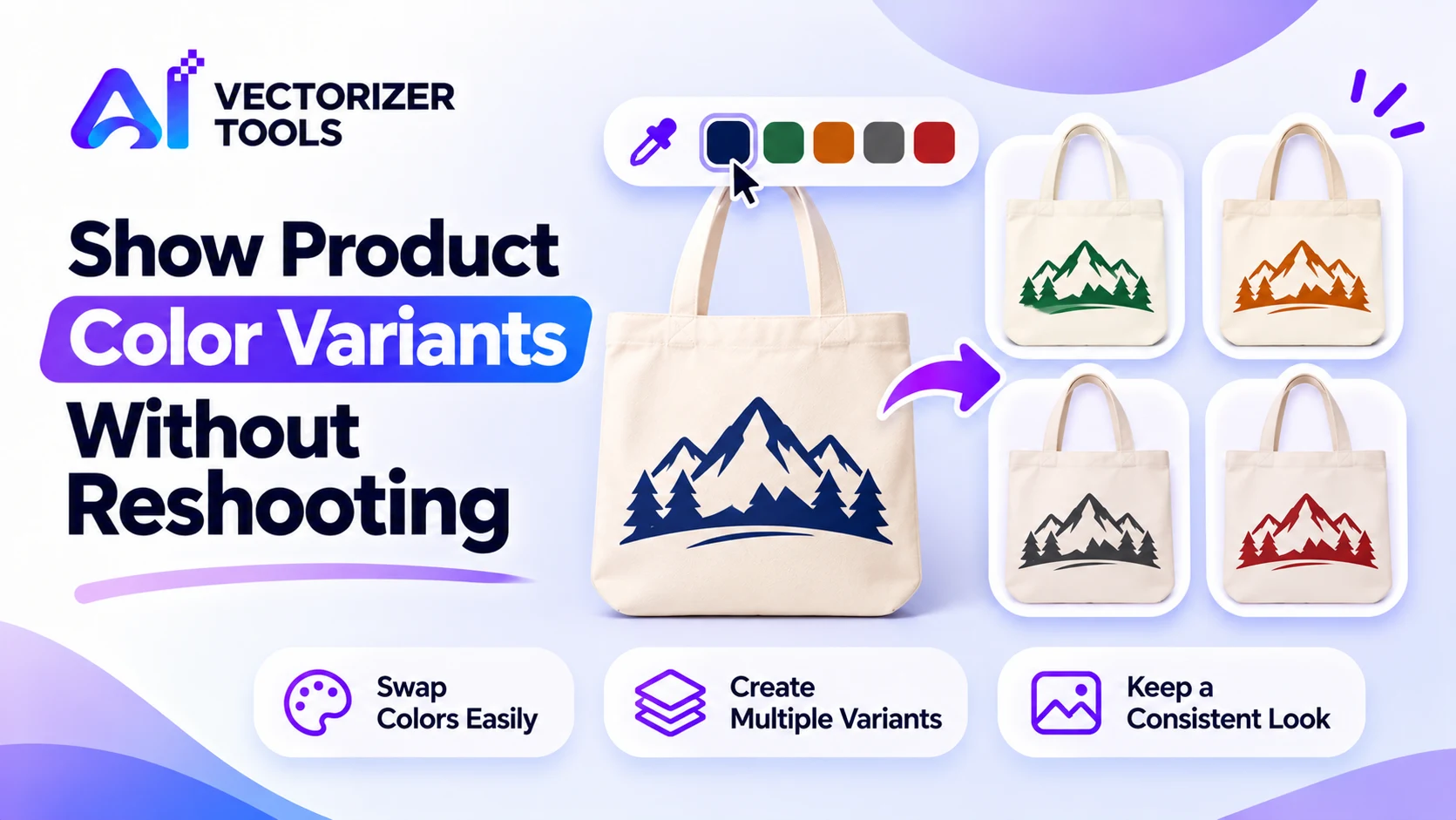
Selling the same item in five different colors generally entails five separate photo shoots. For certain types of images, however, these extra shoots can be avoided: the color can simply be adjusted digitally to showcase the various options. The trick lies in knowing which images are suitable for this approach.
Image Recolor lets you click a color in your image and swap it for another. That works when the area you're changing is a flat, uniform color:
Real-life photographs contain subtle variations, highlights, reflections, and shadows. A piece of fabric in a photograph is not just a single shade of blue; it consists of hundreds of different tones. Attempting to replace a color in such an image often results in splotches or halos, creating an unnatural look. Gradients and shadows are the weak point of any basic color-replacement tool. If your product visual is a photograph of an actual garment, either reshooting it or using a specialized photo-retouching process will yield a far more convincing result.
Use the cleanest, highest-resolution image you have.
Use your actual product swatch value so the variant matches reality.
Look for halos where old and new colors meet.
Use a consistent name for each variant, such as mug-red.png.
Customers can be disappointed if an on-screen color is different from the real product. Match the swatch accurately, and note that screen colors vary. If the variant is only a mockup, say so.
Before you begin introducing a variety of colors, determine which versions you will actually bring to market. A catalog that includes every conceivable shade is more complex to manage and carries a higher risk of disappointing your customers. Create a list of the colors, note the exact value corresponding to each one, and keep this list. It will serve as your single, reliable reference for your photographs, product names, and inventory management.
You sell a tote with a flat, one-color design: a mountain graphic in navy. You want to show the same graphic in forest green, burnt orange and charcoal for a seasonal collection.
Because the graphic is flat, every variant looks clean. If instead you had a photograph of the actual bag on a model, the same trick would give patchy results.
| Image type | Recolor result | Recommendation |
|---|---|---|
| Flat artwork or logo | Clean | Recolor freely |
| Flat-color mockup template | Clean | Recolor the base shapes |
| Product photo with shading | Patchy or fake-looking | Reshoot or use a photo editor |
| Image with gradients | Banding and halos | Avoid |
Some online retail platforms have strict rules regarding images. Amazon, for example, requires the main image to show the actual product against a pure white background. A recolored mockup might not meet this requirement for a main image, but it could be perfectly suitable for secondary image slots, provided that it accurately represents the item. Consult our guides for Amazon's image requirements and background removal for marketplaces.
For recoloring a logo specifically, see updating old logo files after a brand color change.
If you perform this task regularly, establish a simple routine so that processing each new product takes only a few minutes. Maintain a folder containing clean, flattened source files. Keep a text file up to date that lists all approved color codes. Consistently use the same background and workspace dimensions for every variant, and name your files by specifying the product, color, and size. If a supplier changes a shade, you will be able to update all relevant files at once, rather than having to search through your previous exports. Rigorous organization also makes it easy for a colleague or an external service provider to take over, while ensuring a consistent presentation of your online catalog across all products.
Only if the area is a fairly flat color. Photos with shading and highlights usually look unnatural after a simple color swap.
It runs in your browser and is free to use.
Use the manufacturer's color value or measure it from a well-lit photo, then enter it for the new color.