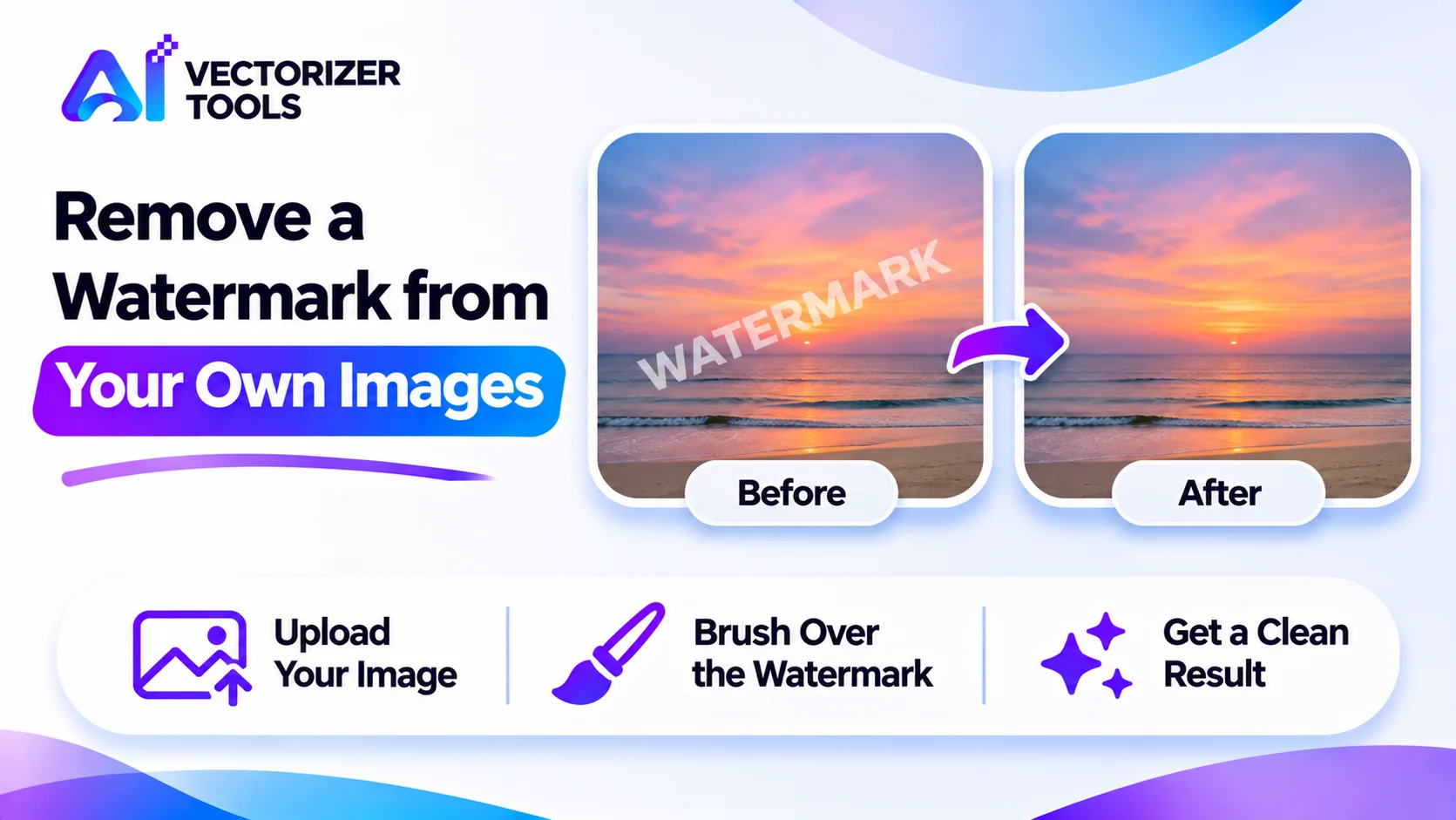
Watermarks, embedded dates, or unwanted text elements can appear on images for a variety of common reasons. Perhaps your camera added a date stamp to your vacation photos, you applied a watermark to a draft but lost the original file, or an image includes a logo that you no longer want there. This guide explains when it is appropriate to remove such elements and when it is not, as well as how to go about it properly.
Removing a watermark from another person's work, whether it is a preview image from a stock photo library, a proof provided by a photographer, or any other creation, in order to use it without payment or attribution, constitutes a copyright infringement. In many jurisdictions, the deliberate removal of copyright management information can, in itself, be a violation of the law. Watermarks are intended to protect the rights of their owner. If you wish to use an image, obtain the version without a watermark by securing an appropriate license, or request permission. This does not constitute legal advice; please check the regulations in effect where you reside.
With the Watermark Remover, you brush over the mark you want to remove, and the AI fills the area with content that matches the surroundings (2 credits). It's best thought of as a smart patch.
Use the largest, best-quality version.
Cover it fully, extending a little beyond its edges, so no fringe is left.
Inspect the result at 100 percent.
Small passes often beat one big brush.
Save the result under a new name.
| Situation | Result |
|---|---|
| Small date stamp on sky, wall or grass | Usually excellent |
| Text over a smooth gradient or blurred background | Good |
| Mark across a face or detailed object | Often poor; the AI must invent real features |
| Large, semi-transparent mark covering most of the image | Poor; consider a different approach |
| Mark over a regular pattern (bricks, fabric, tiles) | Mixed; patterns can break |
A digitized family photo features a date in orange in one of the bottom corners, superimposed over a lawn. You run the tool over the numbers leaving a small margin and initiate the processing. The lawn is reconstructed naturally. Upon zooming in, you notice a tiny area where the grass appears slightly smoother than the rest. You go over that spot again with the tool, and this second pass results in a better blend. Total time: a few minutes.
If you watermark your own images, keep an unmarked master in a separate folder. Apply watermarks to copies. A small, partially transparent mark in a corner protects your work without wrecking the picture, though it can be removed by a determined person, so don't rely on it as your only protection.
If the area you want to clear is a background, rather than a mark, the Background Remover may be the better tool.
An AI fill isn't the only option, and sometimes it isn't the best one. If a mark sits near the edge of the picture, a simple crop can remove it with no artifacts at all. If the mark covers a plain background, you can sometimes extend the canvas instead, using Image Expander, and then crop away the marked area. For a logo or graphic you made yourself, the best fix is going back to the original design file and exporting a version without the mark. For old scanned photos with stamps, a clean rescan or an unmarked print may exist in the family archive. Pick the simplest method that gives a natural result, and reserve the brush tool for the cases where nothing else will do.
Upload your image, brush over the unwanted mark, and get a clean result back in seconds.
Open Watermark Remover →
Resize any photo to a new aspect ratio without cropping or losing quality, using AI outpainting.
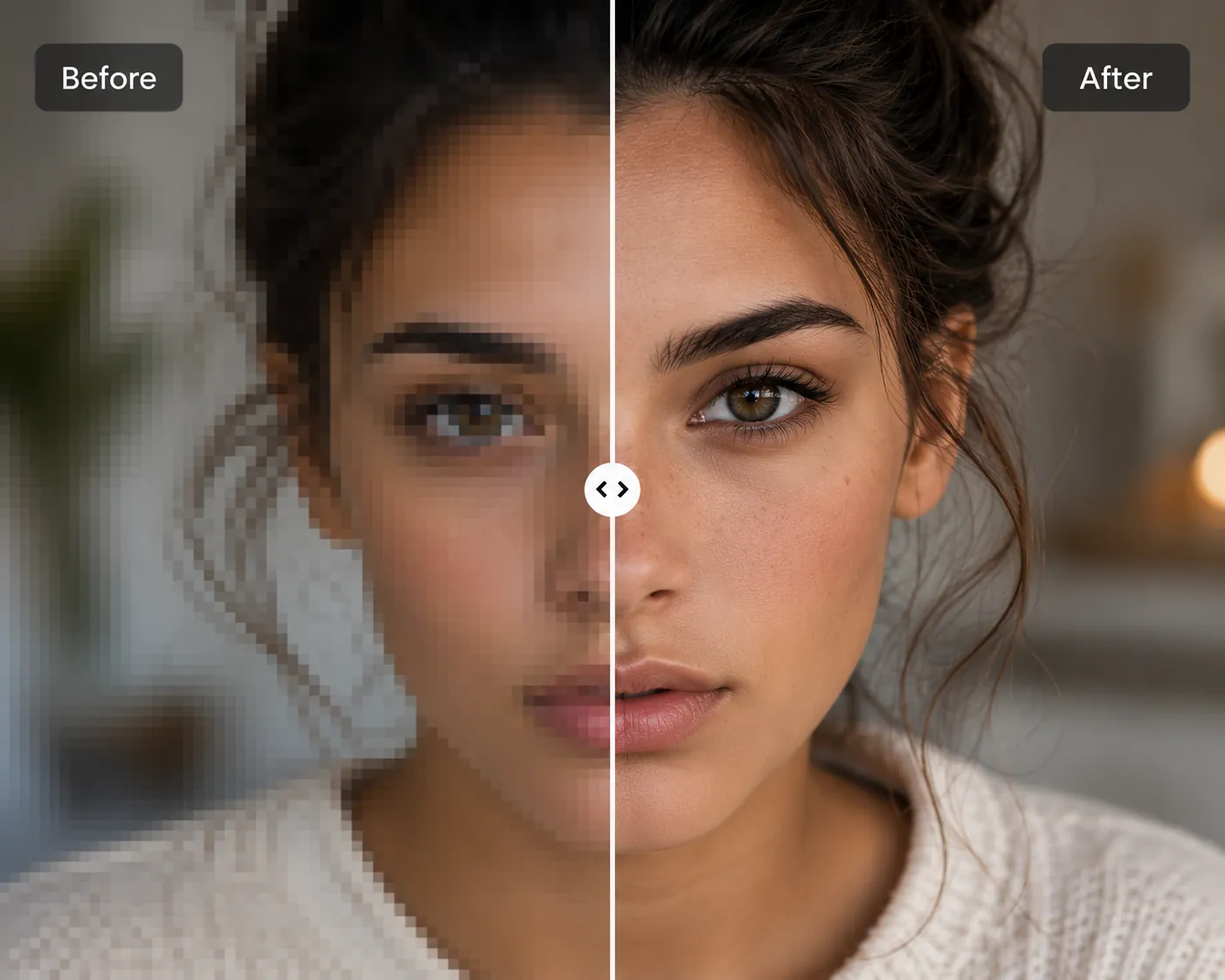
How AI upscaling actually works, and how to choose the right tool for the job.
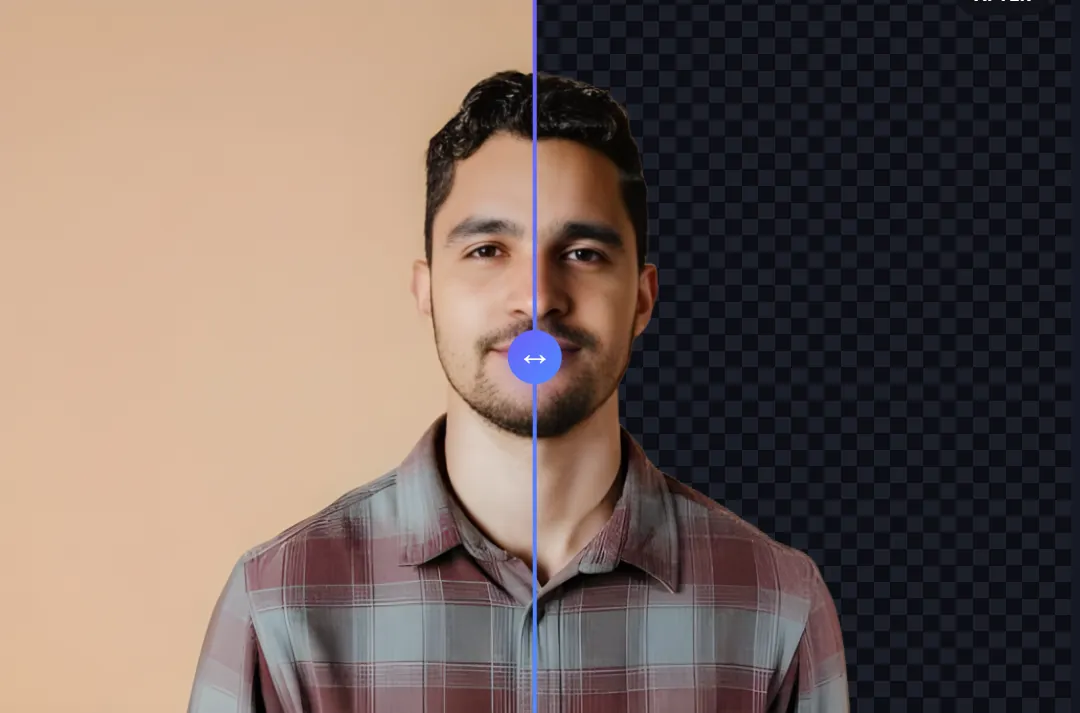
A task that used to eat hours in Photoshop now takes seconds here's what actually changed.
It depends on whose image it is. Removing a mark from your own photo is fine. Removing a watermark from someone else's work to use it without permission can be copyright infringement, and may be unlawful in itself in some places.
Yes. Brush over it and let the AI fill the area. It works best over simple backgrounds like sky, grass or walls.
Complex textures, faces and patterns are hard to reconstruct. Try smaller brush passes, or crop the mark out instead.