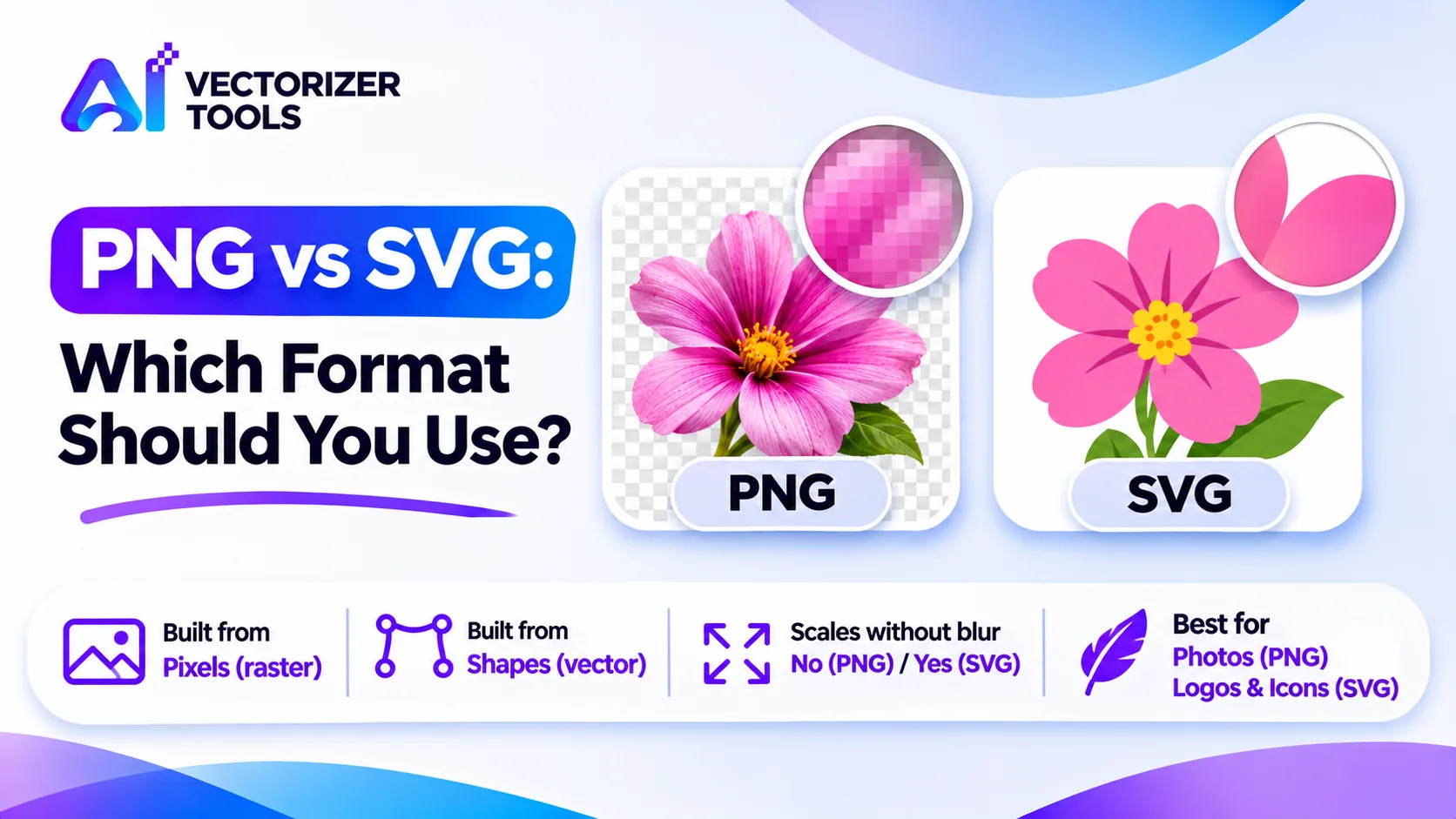
PNG and SVG are two of the most common image formats on the Web, and they function in completely different ways. Choosing the right format results in sharper visuals, smaller file sizes, and an easier workflow for you. This guide explains the difference in simple terms and offers an easy method to help you make your choice.
The PNG format consists of pixels. It is a raster format, a grid of colored dots. If you zoom in far enough, you can see individual squares. The SVG format, by contrast, is composed of shapes. It is a vector format, a set of instructions, such as “draw a circle here and fill it with this color.” Because the image is defined mathematically, it can be displayed at any size, with perfectly smooth outlines.
| PNG | SVG | |
|---|---|---|
| Built from | Pixels | Shapes and paths |
| Scales without blur | No | Yes |
| Transparency | Yes | Yes |
| Photos | Works well | Not suitable |
| Logos and icons | Fine at one size | Excellent at any size |
| File size (simple graphics) | Grows with dimensions | Usually tiny, independent of size |
| Editable shapes and colors | No | Yes |
| Works in cutters and lasers | Not directly | Yes |
A small business has a two-color, flat-design logo. For its website header, it uses an SVG file, which ensures perfect sharpness on all screens. For email signatures, the PNG format is often better supported by email software, making it the preferred choice. Finally, for a vinyl sign, the business provides an SVG file to the manufacturer, who requires vector paths to perform the cutting. A single design, two files each perfectly suited to its intended use.
Going from SVG to PNG is easy: most editors and browsers can export or screenshot a vector at the size you need. Going from PNG to SVG is trickier, because the software has to trace the pixels into shapes. The SVG Converter does exactly that for PNG, JPG and WebP. It works best on logos, line art and flat-color graphics. For photographs it produces heavy, blotchy results; see which images vectorize well.
If your PNG is small, enlarge it first with the Image Upscaler, since a bigger source gives a smoother trace.
PNG and SVG aren't the only choices. JPG is usually the smallest option for photographs, but it can't hold transparency and adds compression artifacts around sharp edges, so it's poor for logos and text. WebP is a modern raster format that often produces smaller files than PNG or JPG and supports transparency, which makes it popular on websites, though some older tools can't open it. PDF and EPS can hold vector artwork and are common in print workflows. A good rule is to keep a vector master for any logo you own, export the raster sizes you need from it, and choose each format for the place it will be used rather than using one format everywhere.
Upload a logo or line art and get a clean, scalable SVG back in seconds.
Convert PNG to SVG →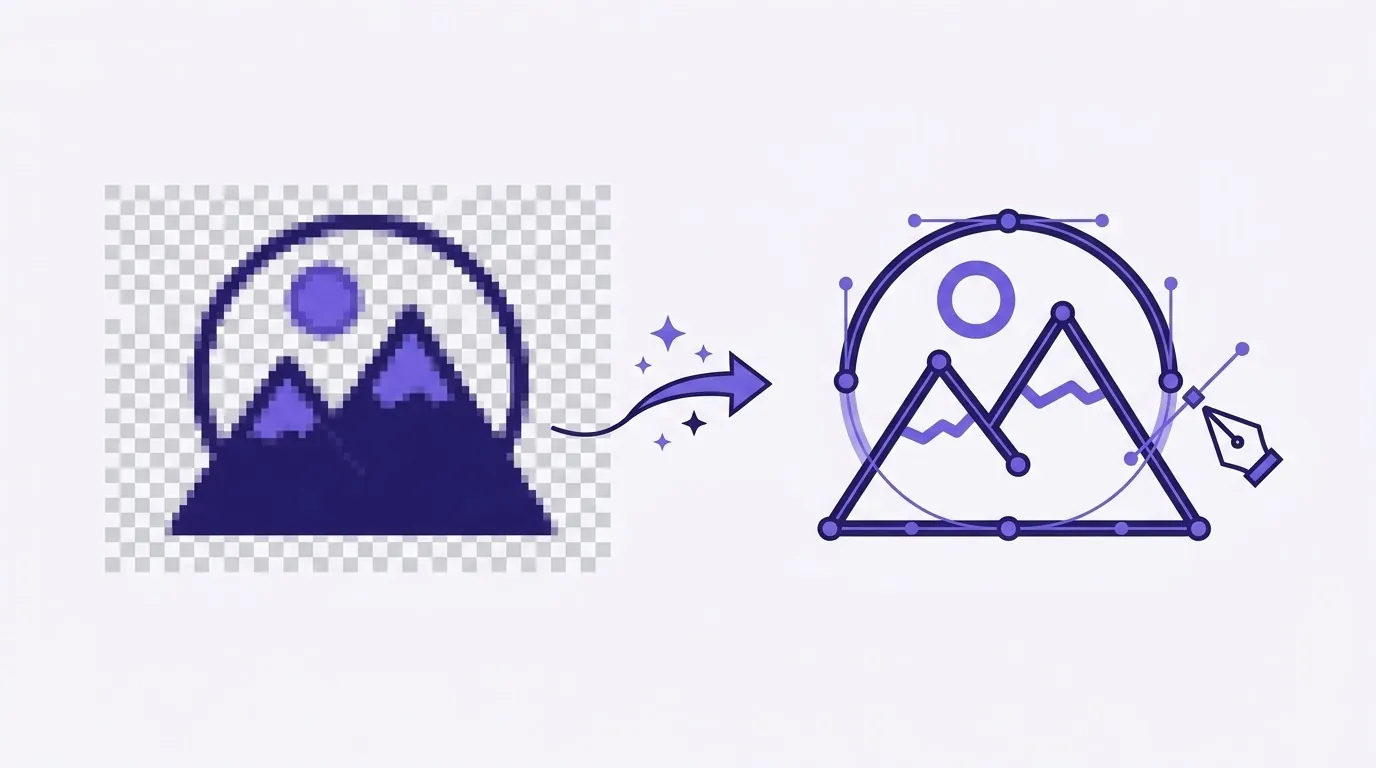
Turn any PNG into a scalable SVG for logos, print, Cricut, and the web.
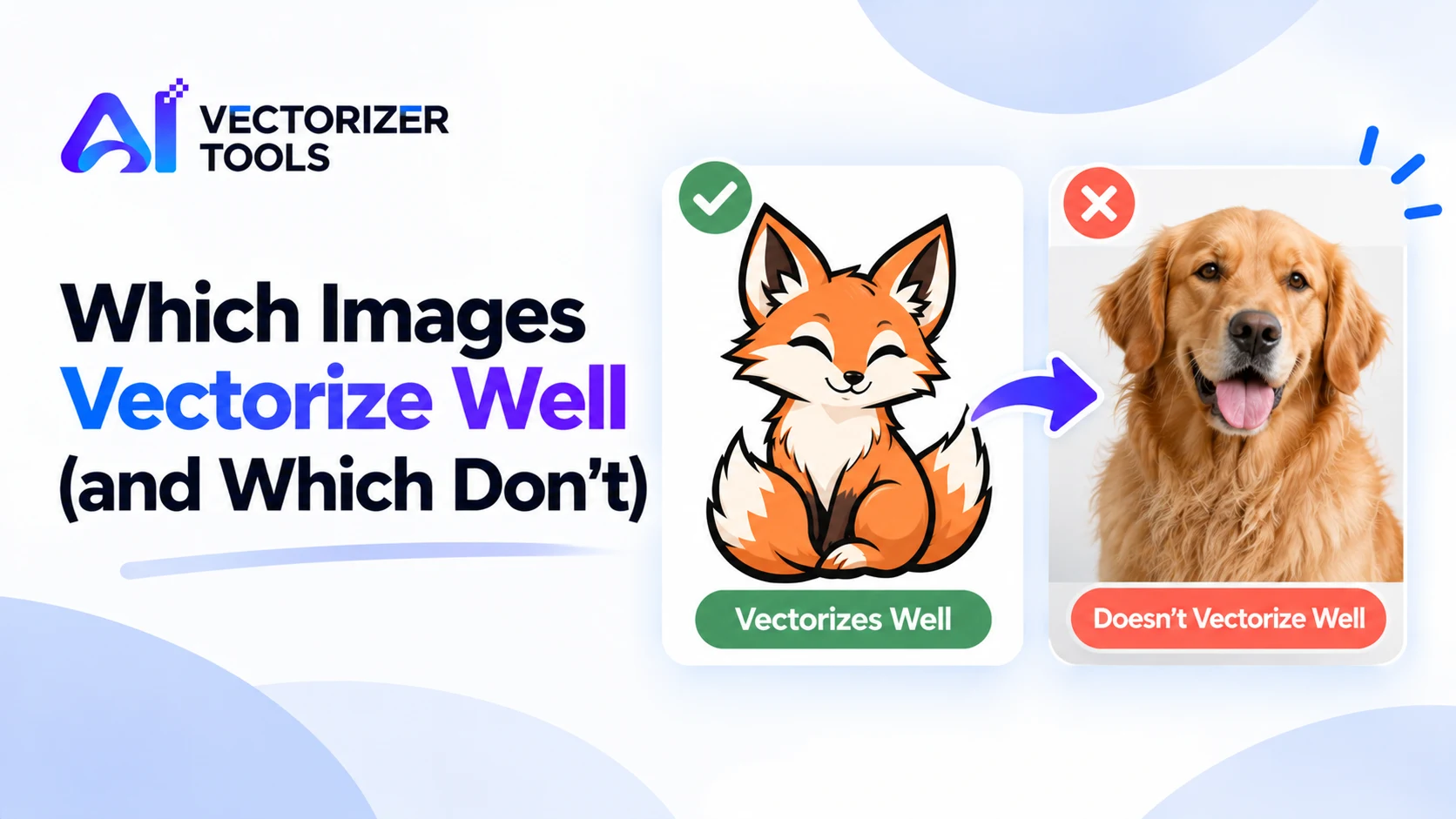
Not every image converts well to SVG. See which images trace cleanly, which turn messy, and a quick checklist to test yours before converting.
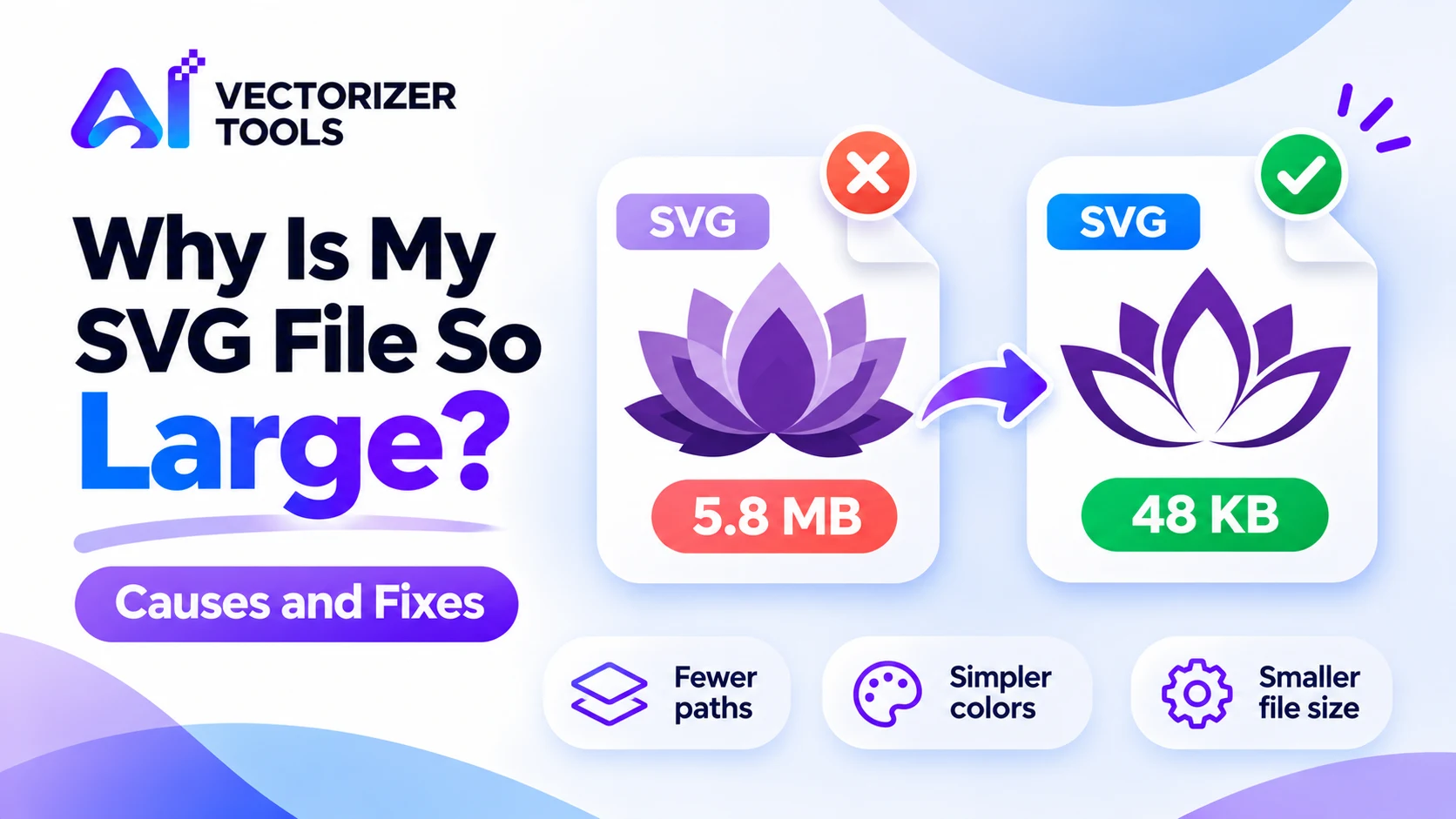
A huge SVG usually means too many points or an embedded image. Learn the causes, how to shrink the file, and how to avoid it when converting.
Neither is better in general. SVG is better for logos, icons and anything that must scale or be cut. PNG is better for photos and complex images.
Yes, by tracing it. It works best on logos, line art and flat-color graphics, and poorly on photographs.
SVG usually, because it stays sharp on every screen and is often small. Keep a PNG for places that don't support SVG.